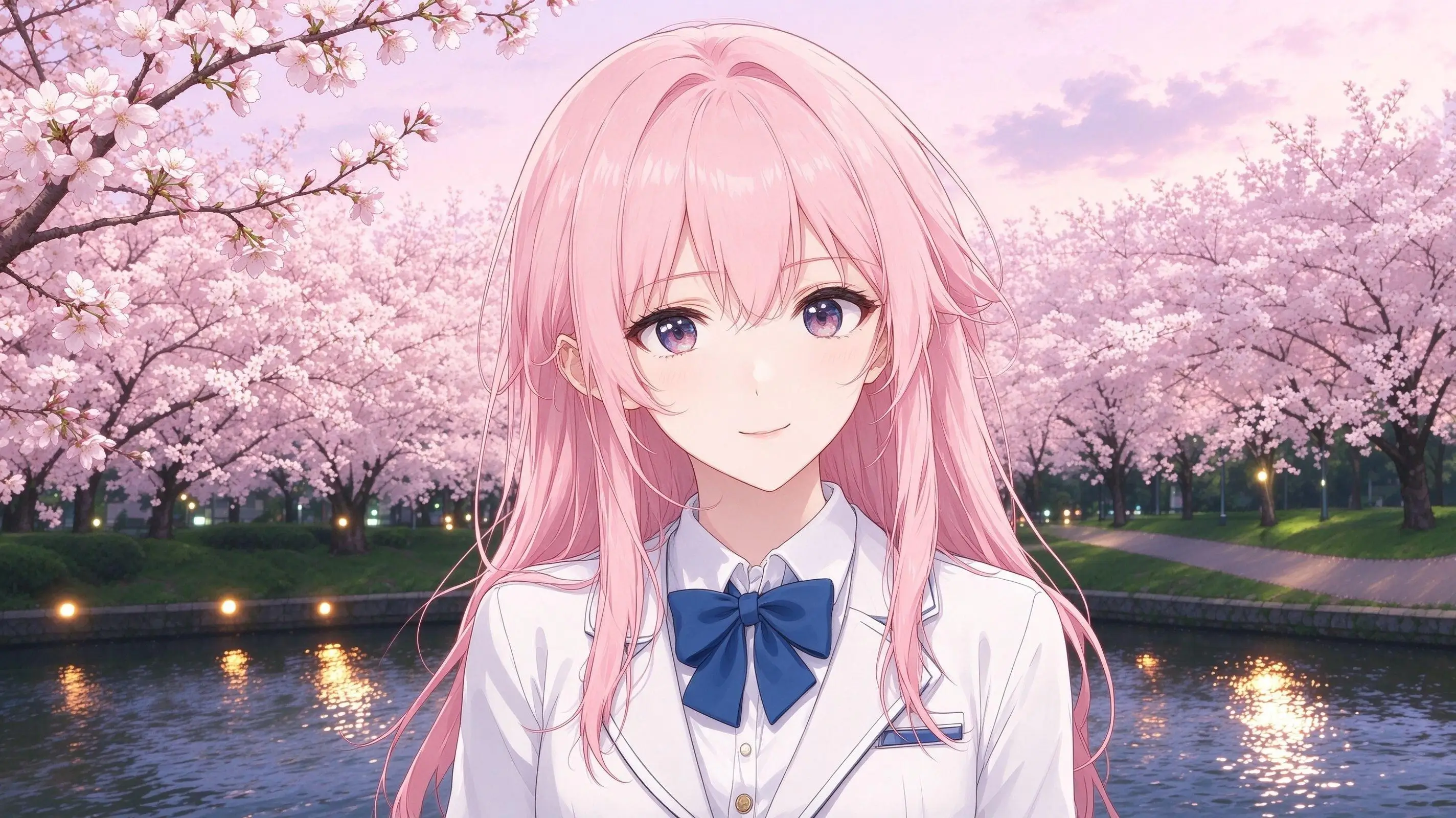
 After
After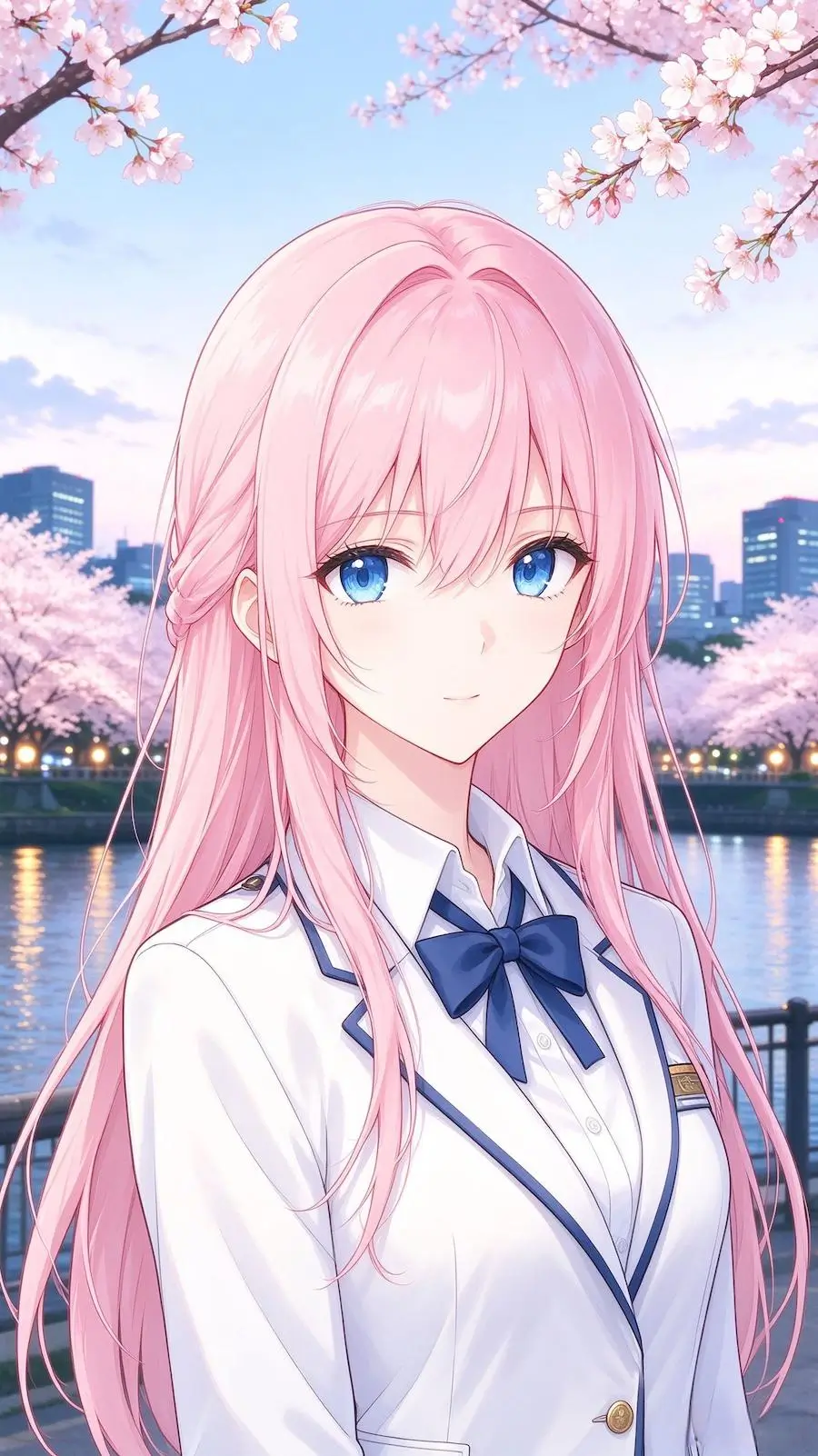 Before
Anime Wallpaper Extension
Upload your image
Target Aspect Ratio
Expand Direction (optional)
Pixels to add around the image. Larger values grow the output canvas.All Sides
Left
Right
Top
Bottom
Prompt (optional)
0 / 500
Expand your images to any aspect ratio with AI, creating more space around your subject while preserving the original artwork.
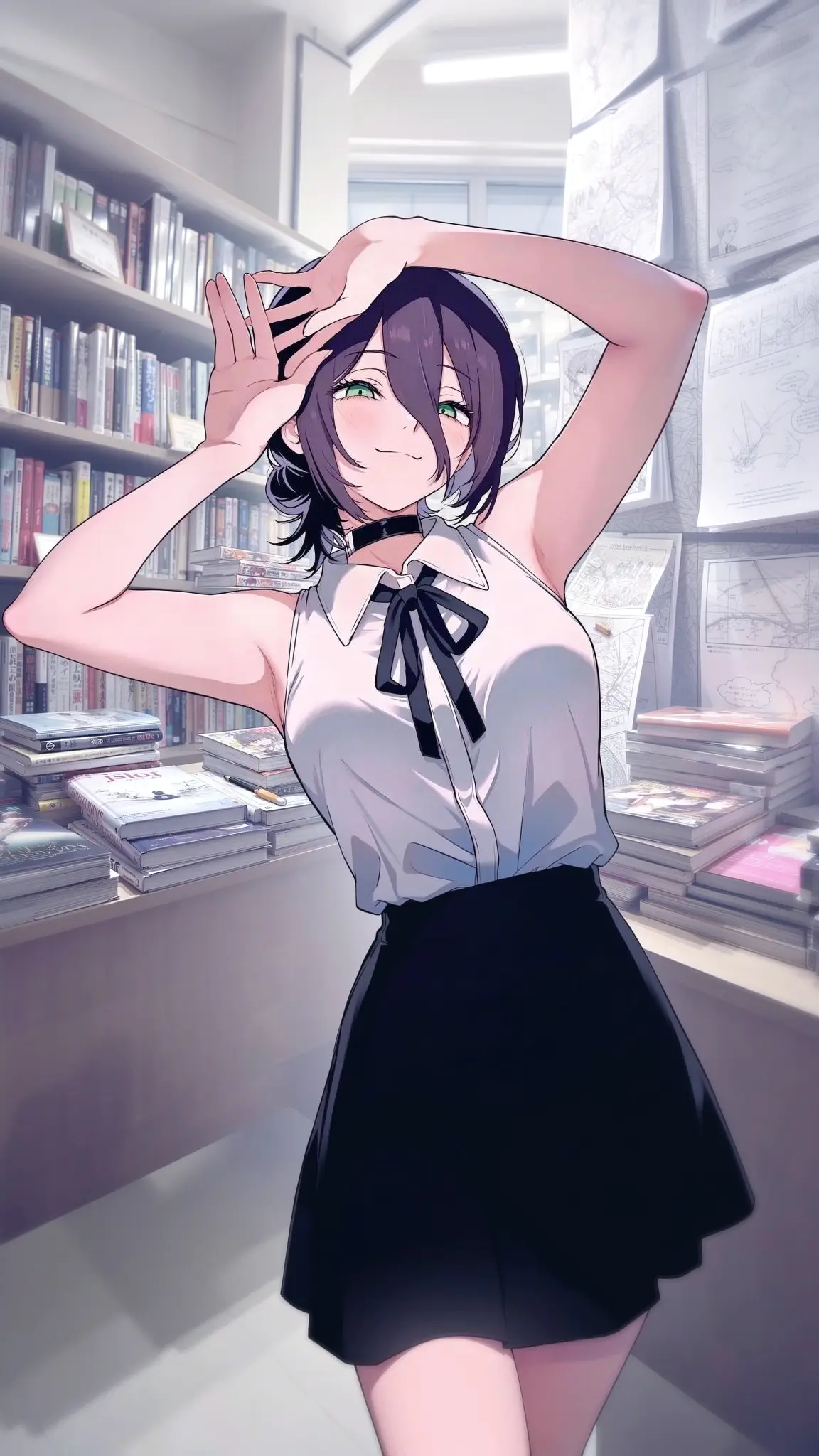
No image? Try one of these:
See how AI image extension expands cropped scenes, reveals more of a character, and fills in missing details to create more complete, natural-looking images.
AfterBeforeAnime Wallpaper Extension
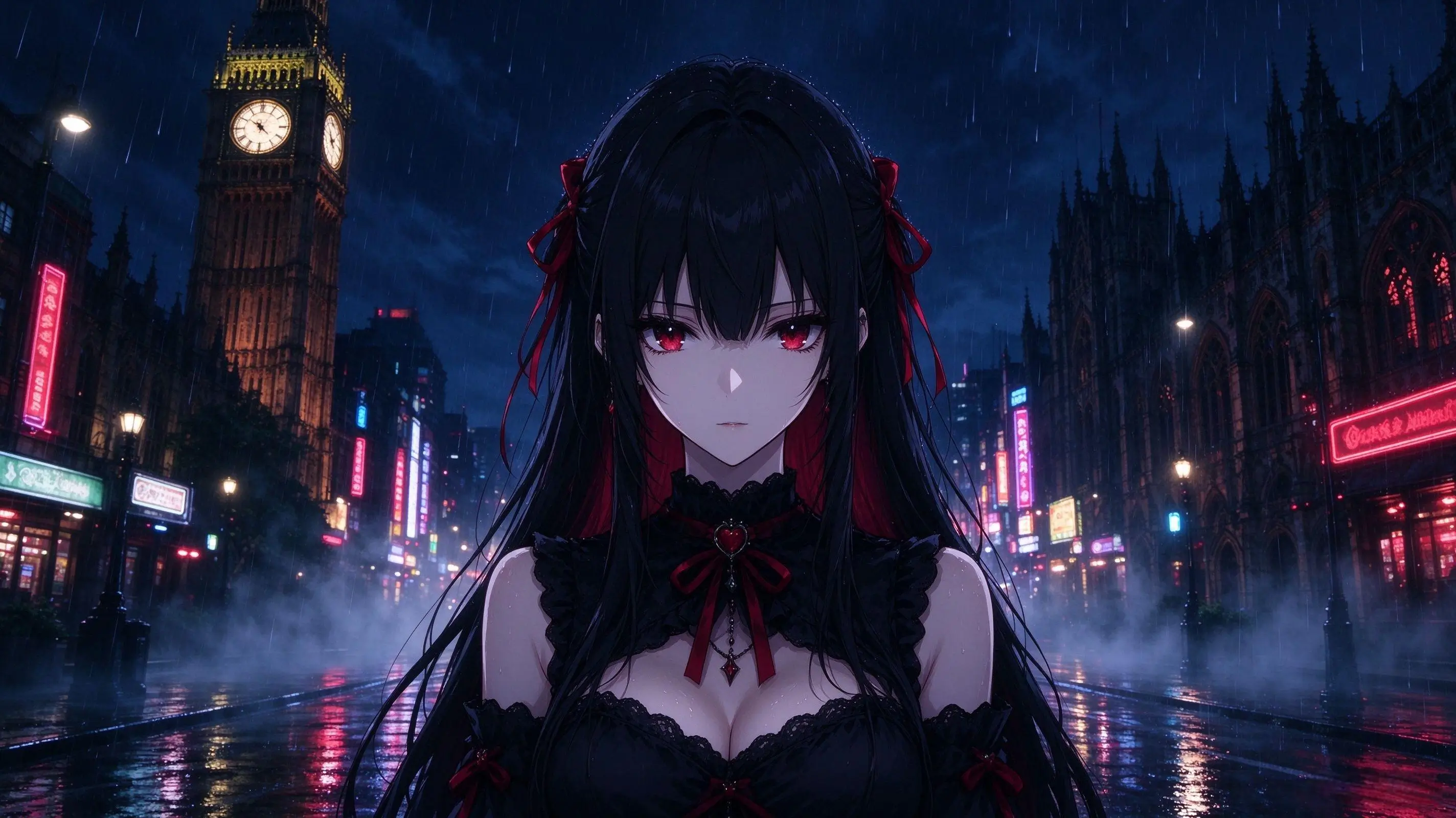 After
After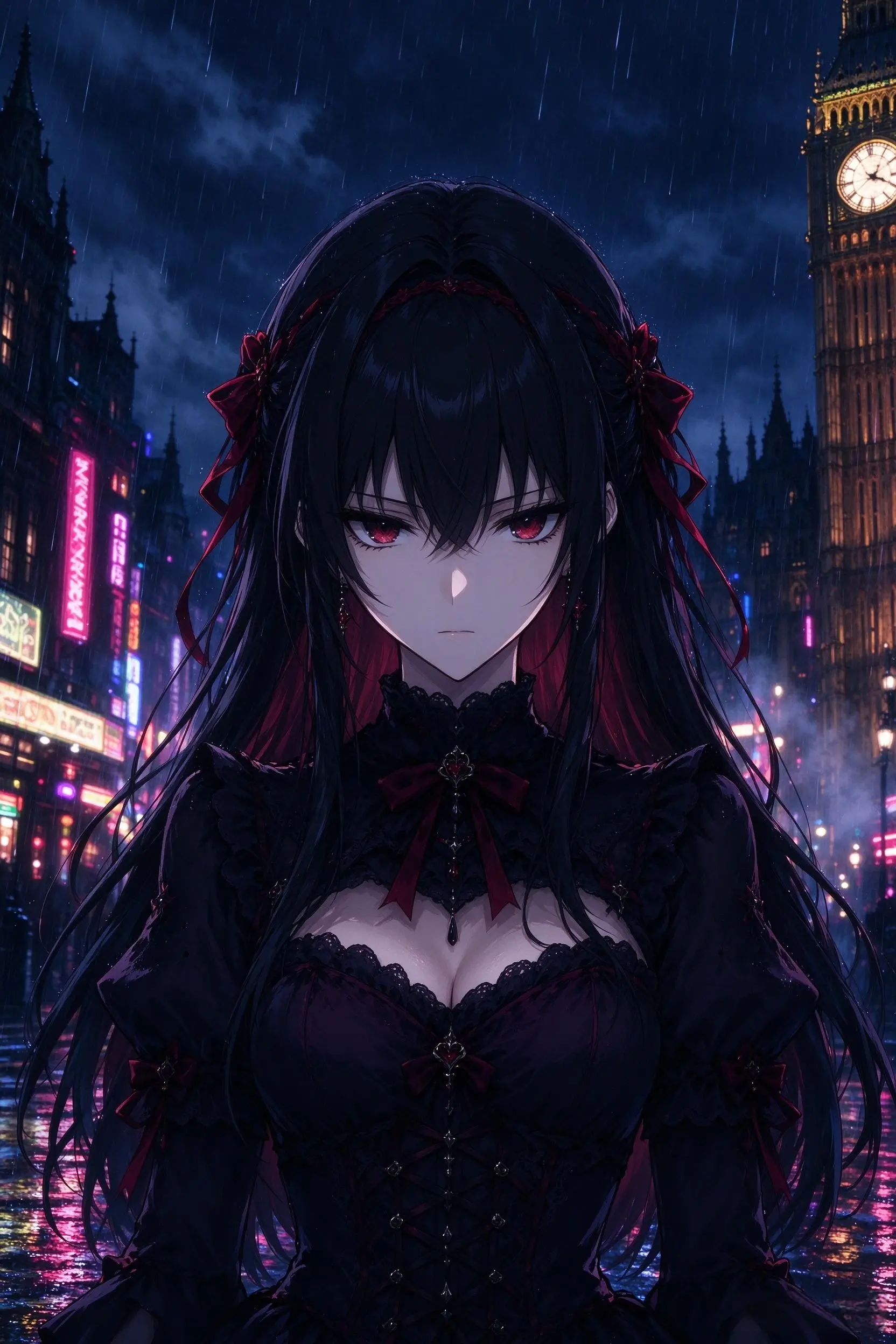 Before
Portrait to Landscape
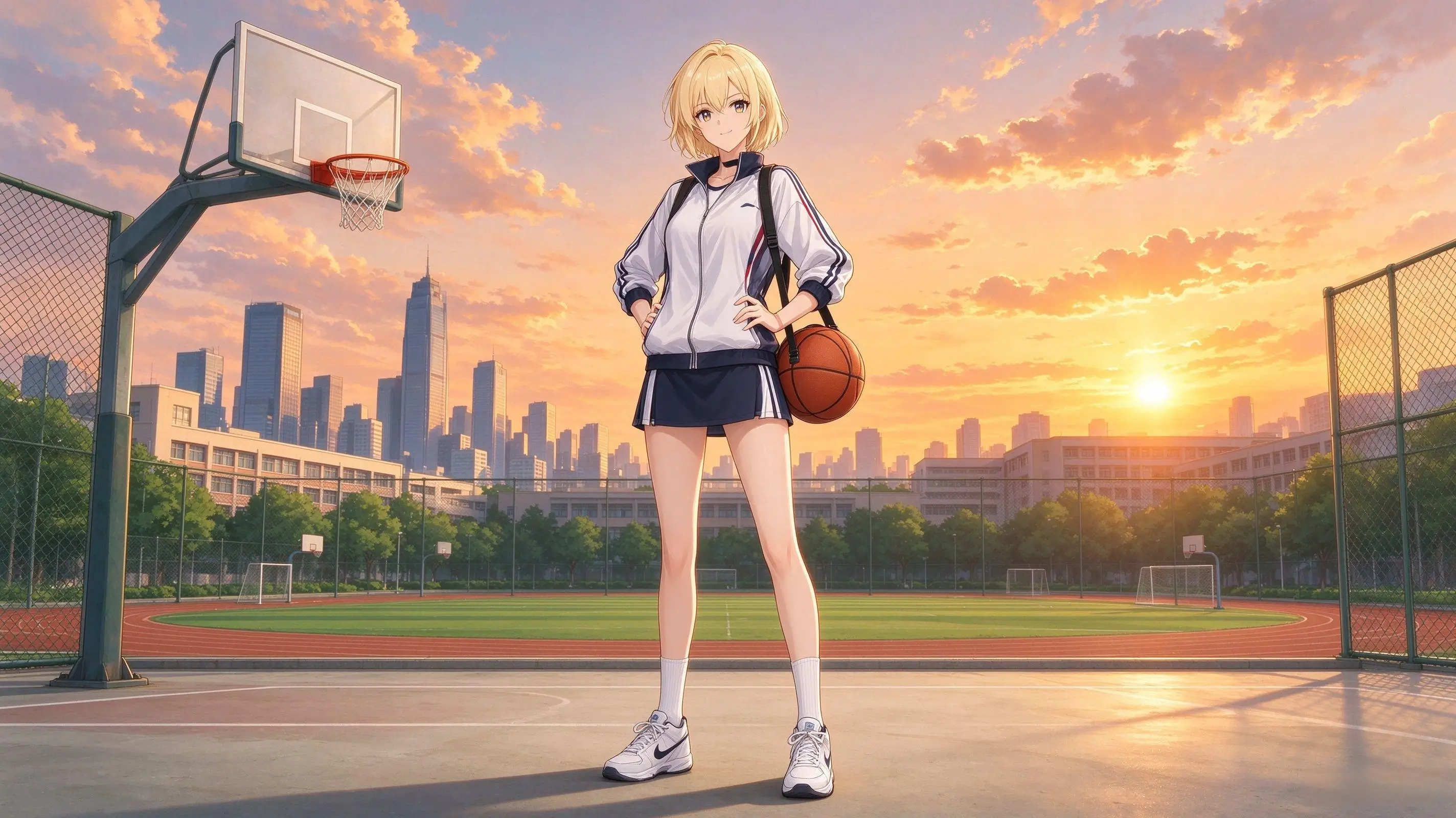 After
After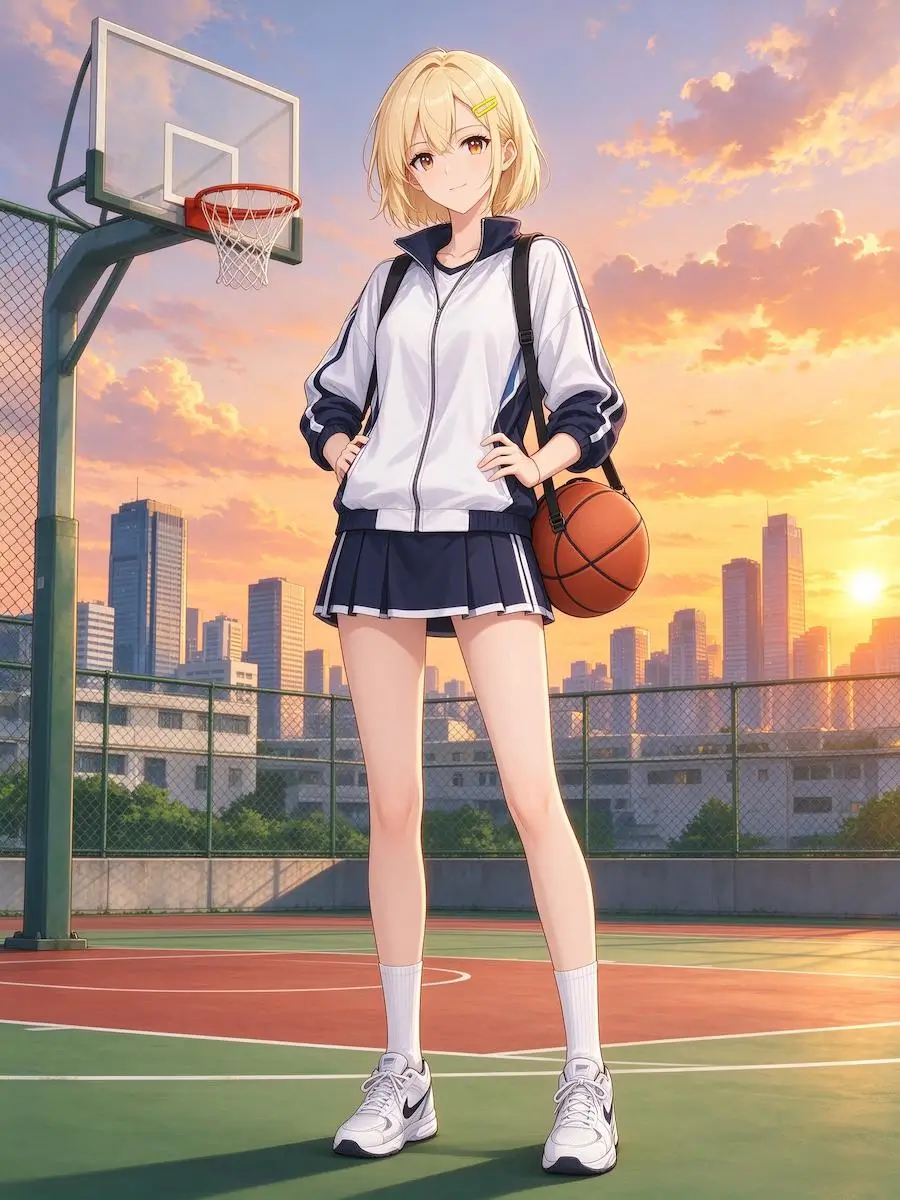 Before
Fantasy Scene Expansion
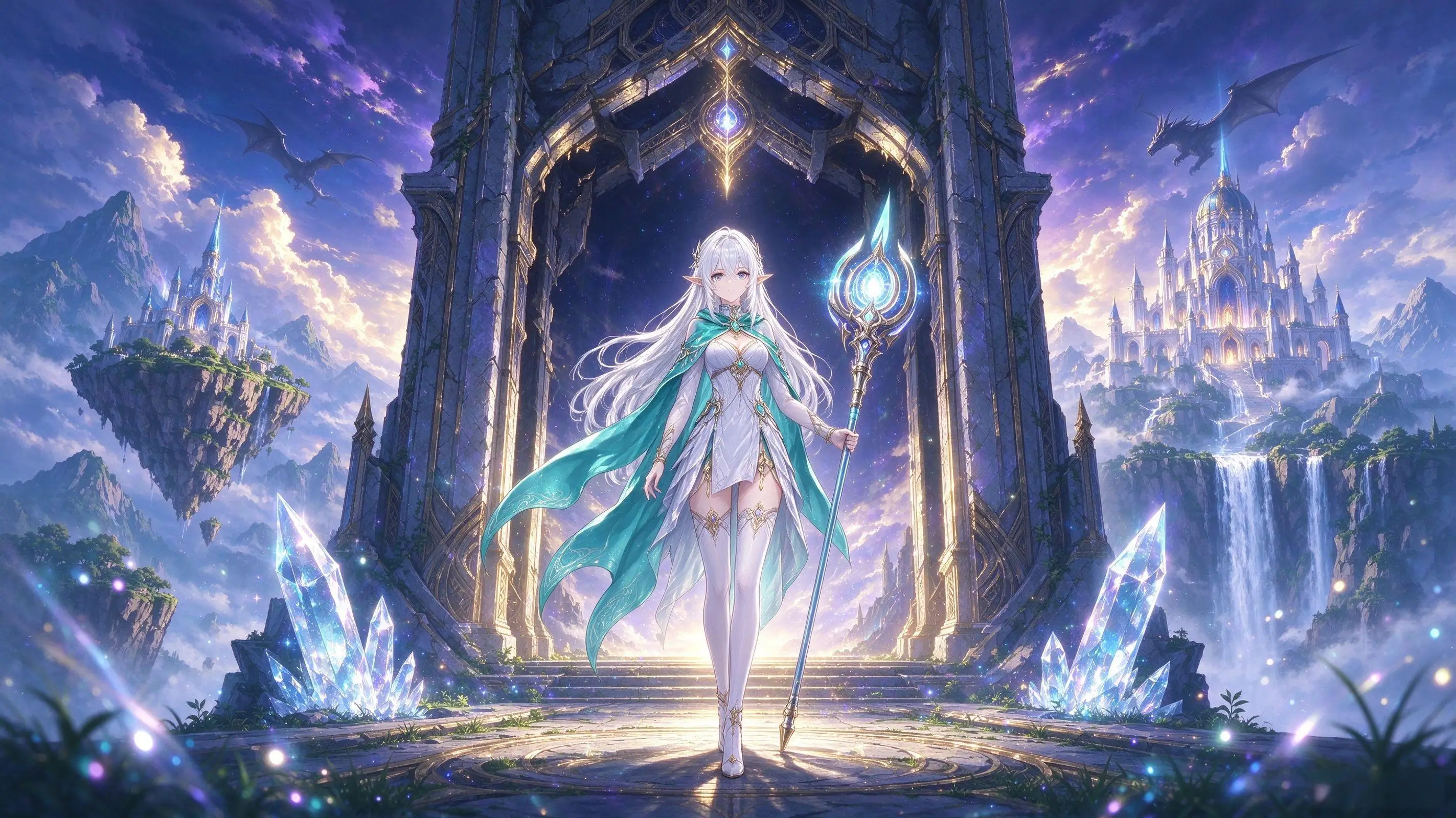 After
After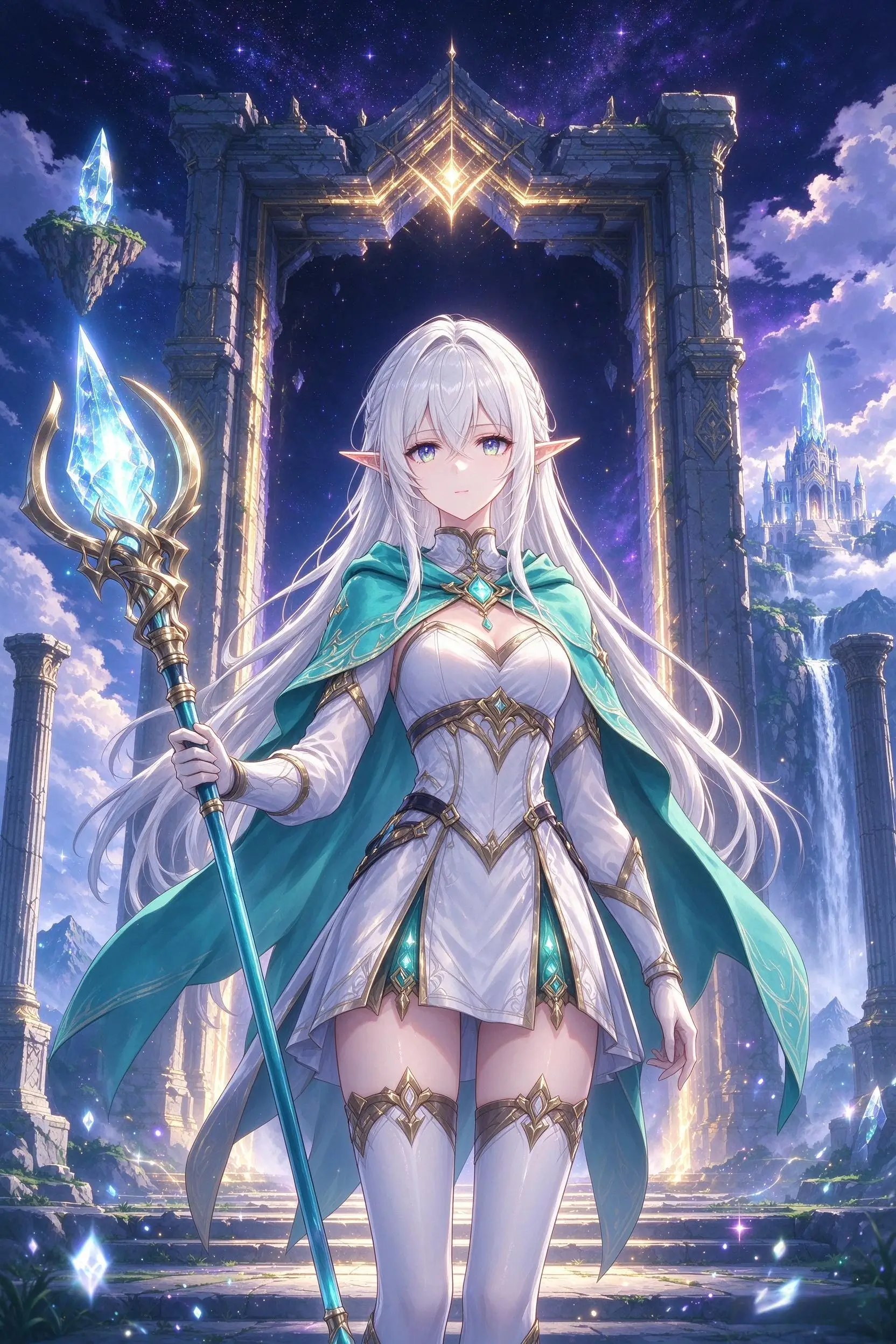 Before
Full-Body Character Composition
Create more space around your images without starting over. Use AI to extend backgrounds, adapt compositions, and continue your artwork beyond its original frame.
Generate new content outside the original image boundaries instead of stretching existing pixels. Create more room around your subject while maintaining a natural transition between the original and extended areas.
Keep the main character, object, or focal point as consistent as possible while AI generates the surrounding scene. This is especially useful for anime portraits, character illustrations, and carefully composed artwork.
Adapt your images for mobile wallpapers, desktop backgrounds, social media posts, and landscape compositions with convenient aspect ratio presets.
Guide the generated areas with a simple text prompt. Describe additional scenery, lighting, colors, or objects to help the extended image match your creative vision.
Upload an anime illustration, portrait, wallpaper, or other image you want to expand. Start with an image that has a clear subject and enough visual context for AI to continue.
Quickly expand to a preset aspect ratio or precisely adjust the extra space added to each side of your image.
Optionally enter a prompt describing what should appear outside the original frame. For example, add more cherry blossom trees, extend a city skyline, or reveal more of a fantasy landscape.
Click Extend Image to generate your expanded composition. Review the result, check that the new areas blend naturally with the original, and download your image.
Bring cut-off faces, hair, hands, clothing, or other details back into the frame. Extend the canvas to reveal more of your character or subject while keeping the original composition as the starting point.
Turn a tightly framed image into a more complete scene. Reveal more of a fantasy world, continue a city street, extend an indoor setting, or generate the surroundings that were missing from the original composition.
Give characters, portraits, and objects room to breathe. Add natural space above, below, or beside the subject for a more balanced composition without stretching the original image.
Continue skies, forests, architecture, landscapes, and indoor environments beyond the original borders. Let AI fill the new areas with details that match the existing scene and visual style.
Transform one image into different aspect ratios for social posts, banners, thumbnails, presentations, and other creative projects—without sacrificing important parts of the original composition.
Decide where you plan to use the image before generating. A portrait canvas works well for phone wallpapers, while a landscape canvas is better for wide scenes.
On a locked ratio, Expand sets the gap from your image to the canvas edge. Raising it past the free space at full size scales the source down so the margins still fit. Checkerboard at Expand 0 is often just aspect-ratio letterbox — increase Expand if you want padding on every side.
Images with a little surrounding space are often easier to extend naturally. If the original subject touches the edge, inspect the result carefully for unwanted changes to the face, hair, clothing, or body.
Focus your prompt on what should appear outside the original frame. For example, describe more sky, additional trees, or distant buildings rather than asking the model to redesign the whole scene.
Mention the existing style, lighting, perspective, and color palette when consistency matters. For anime illustrations, terms such as cel shading, clean line art, and soft anime backgrounds may help guide the result.
Check transitions between the original image and the generated areas for inconsistent lines, repeated objects, lighting differences, or distorted details.
Add more space around your subject and extend your scene naturally with AI—without starting over.
Extend your image